
What products are involved?
This article is based on using Rheonics Sensor Module Electronics (SME), and the HD67B29-B2 OPC UA Server/Modbus TCP Master Converter
What is the purpose of this article?
This article describes the process of integrating Rheonics sensors with the HD67B29-B2 OPC UA Server/Modbus TCP Master Converter so data can be transmitted via an OPC UA server for easy monitoring and integration using an OPC UA client.
TABLE OF CONTENTS
1. Overview
This article explains how to configure the OPC UA Server/Modbus TCP Master Converter for data visualization using an OPC UA client. This setup allows Modbus TCP devices to send their data through an OPC UA server for easy monitoring and integration.
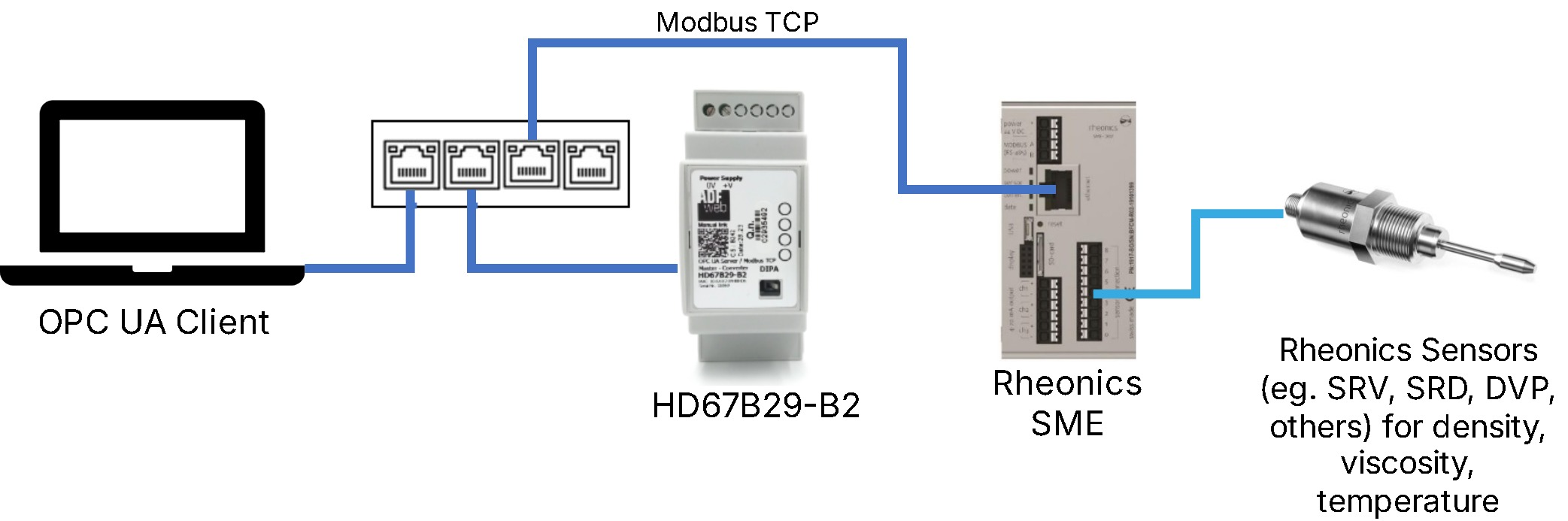
Figure 1: Architecture of Rheonics SME, HD67B29-B2, and OPC UA Client
2. HD67B29-B2 Configuration
The HD67B29-B2 configuration is done using the SW67B29 software.
1. Download the HD67B29-B2 software that can be found in SW67B29 software
2. Connect the HD67B29-B2 through Ethernet to a PC as shown in the following diagram.
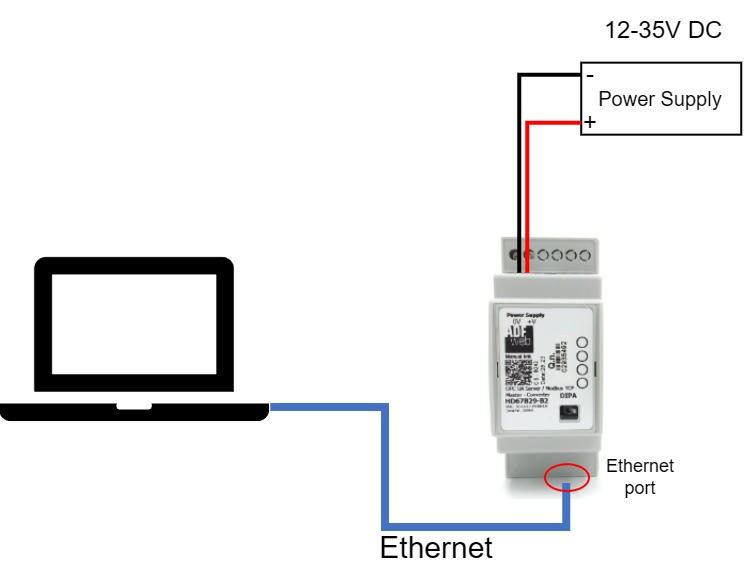
Figure 2: HD67B29-B2 connection to PC
3. Open the HD67B29-B2 software, which is under the name Compositor SW67B29.
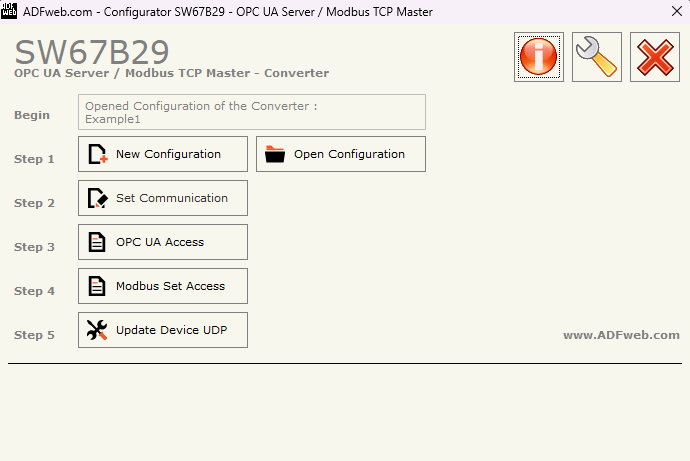
Figure 3: Compositor SW67B29 software
4. Choose New Configuration and select a name for the configuration
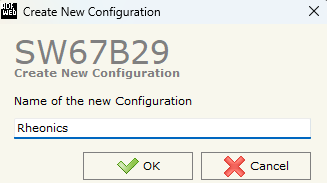
Figure 4: New configuration
5. Select Set Communication
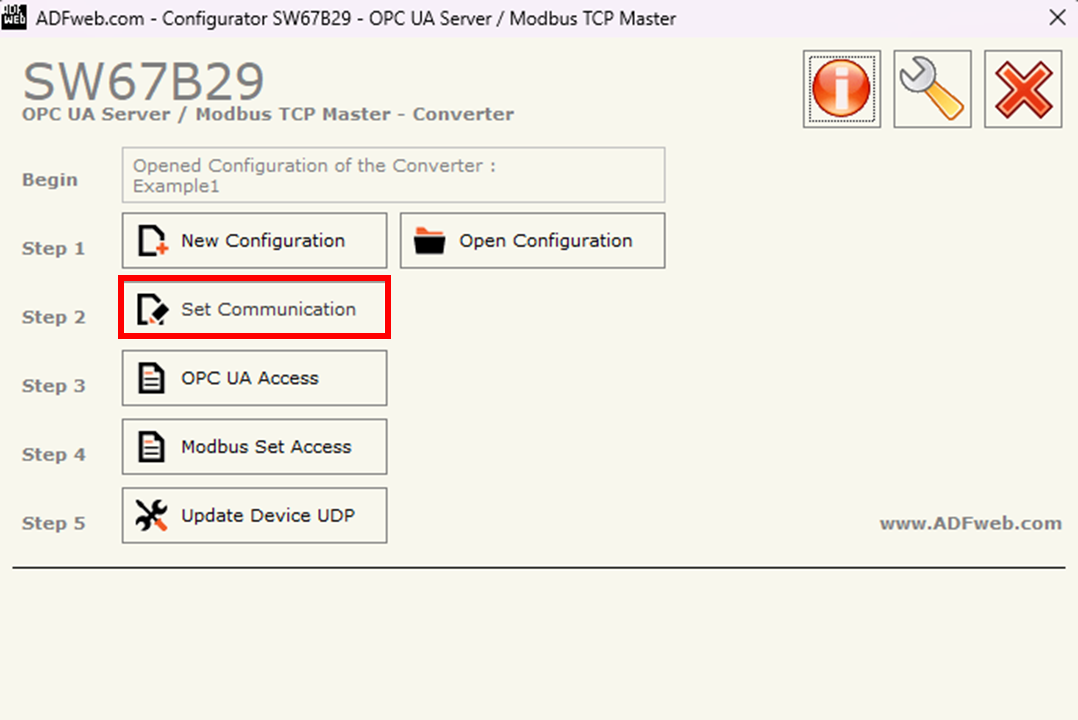
Figure 5: Set Communication
6. Configure the parameters as follows:
1. Ethernet Connection
- Device name: e.g., SRV
2. OPC UA Server
- IP Address: IP address of the OPC UA side
- SubNet Mask: 255.255.255.0
- Port: 4840
3. Modbus TCP Master
- IP Address: e.g., 192.168.100.60 (The IP that is assigned to the HD67B29-B2 and used for uploading its configuration)
- SubNet Mask: 255.255.255.0
- TimeOut (ms): 3000
- Cyclic Delay (ms): 500
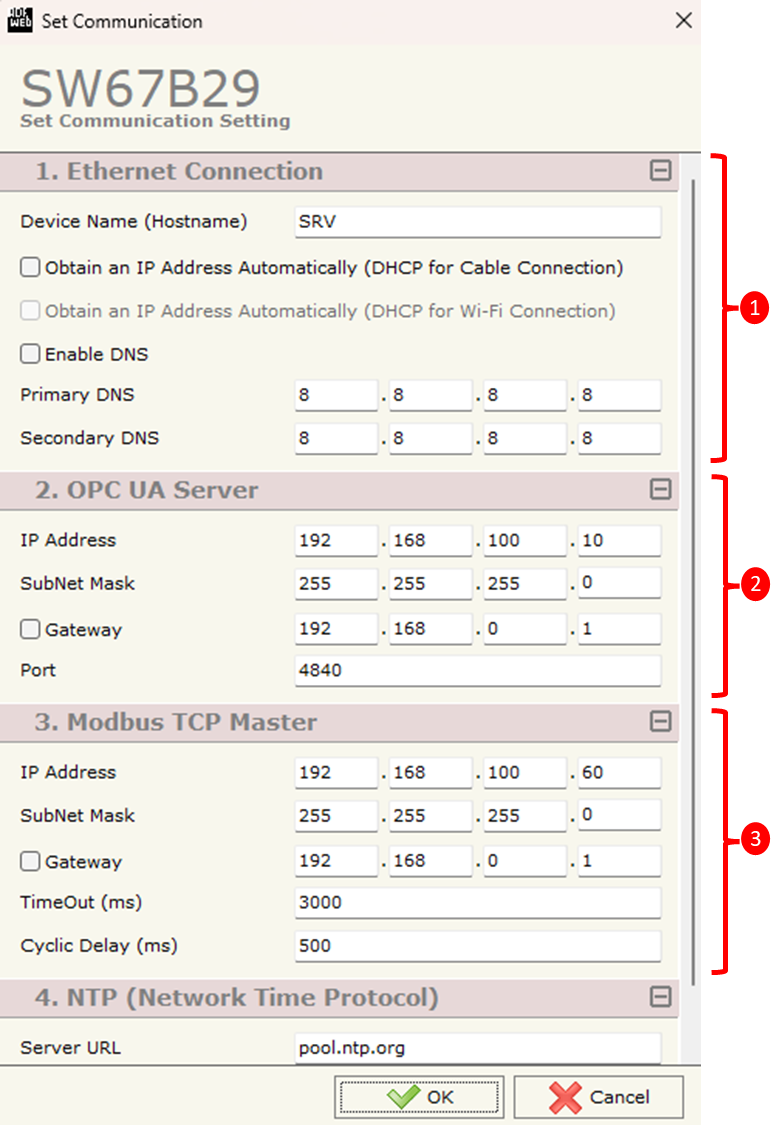
Figure 6: Set Communication - Configuration
Increase the timeout in case the sensor is not reading correctly. |
7. Select OPC UA Access
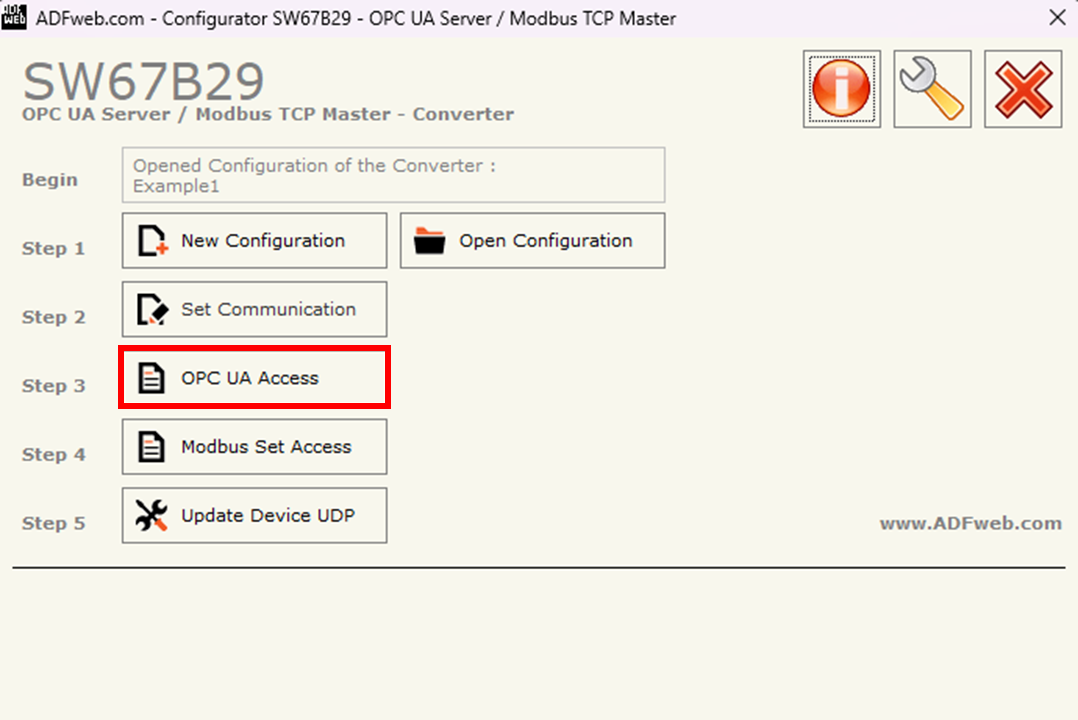
Figure 7: OPC UA Access
8. In this section, the OPC UA server variables are defined. Rheonics sensor parameters are represented as floating-point (Float) values, each occupying 4 bytes. For this reason, a minimum spacing of 4 bytes must be maintained between consecutive positions to ensure correct data mapping.
- Type: Float
- Position: Position in the device’s internal memory where the value is defined. Minimum spacing of 4 bytes between each position.
- Length: 4 - Byte length of the parameter
- Name: e.g. viscosity, density, etc.
- R/W: Read Only
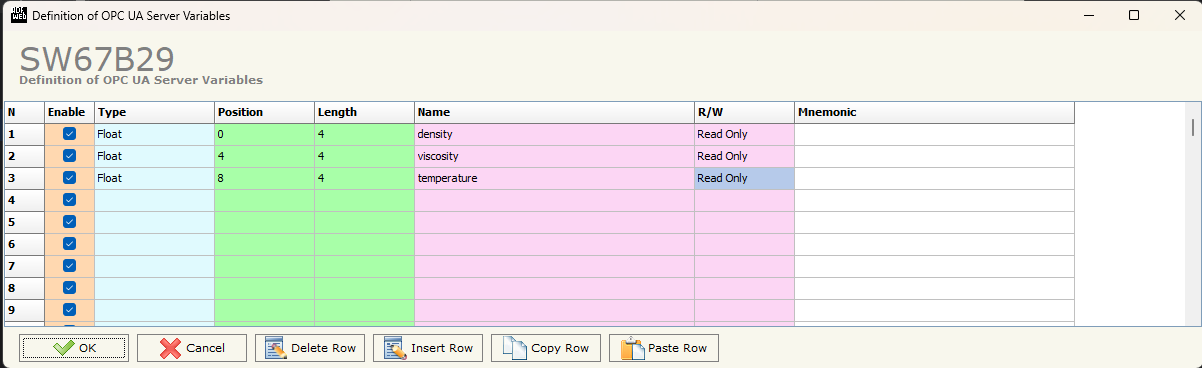
Figure 8: OPC UA Access - Configuration
9. Select Modbus Set Access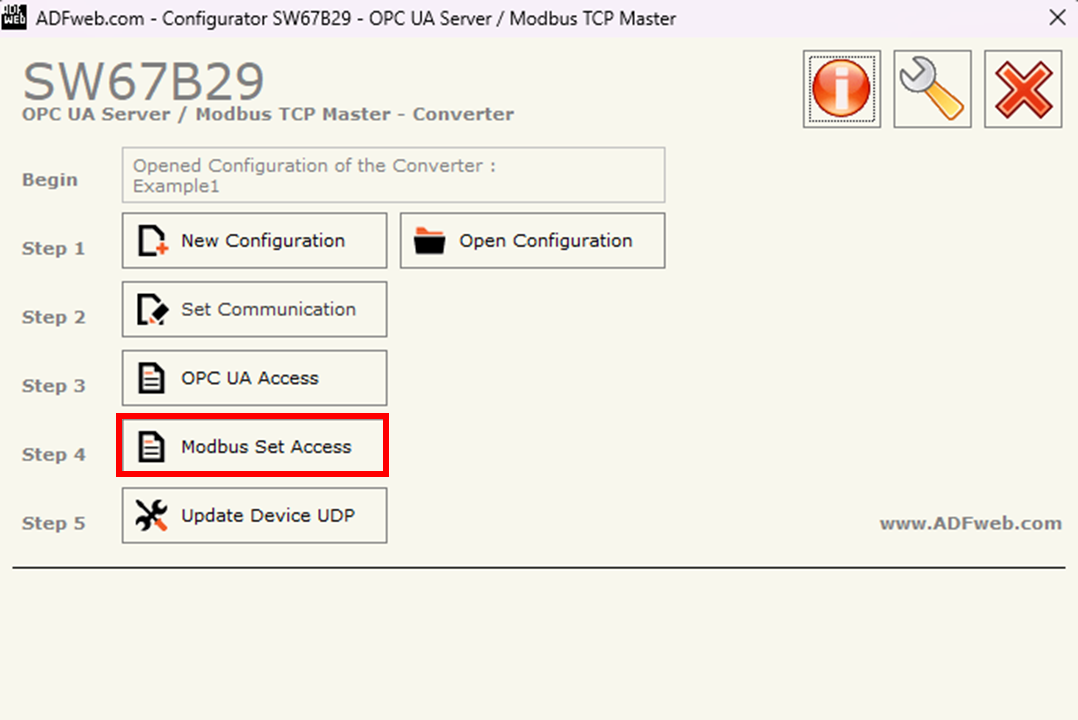
Figure 9: Modbus Set Access
10. The following table should be completed as follows to read the parameters from Rheonics SME:
- SlaveIP Address: IP of the SME
- Port: 502 (default)
- Slave ID: 255
- Type: Input Register
- Address: Address of Modbus TCP Input Registers
- NPoint: 2 - Number of consecutive registers to be read
- Poll Time: 3000 ms
- Position: Between each position should be minimum 4 bytes.
- Swap:✅
- Swap Word:✅
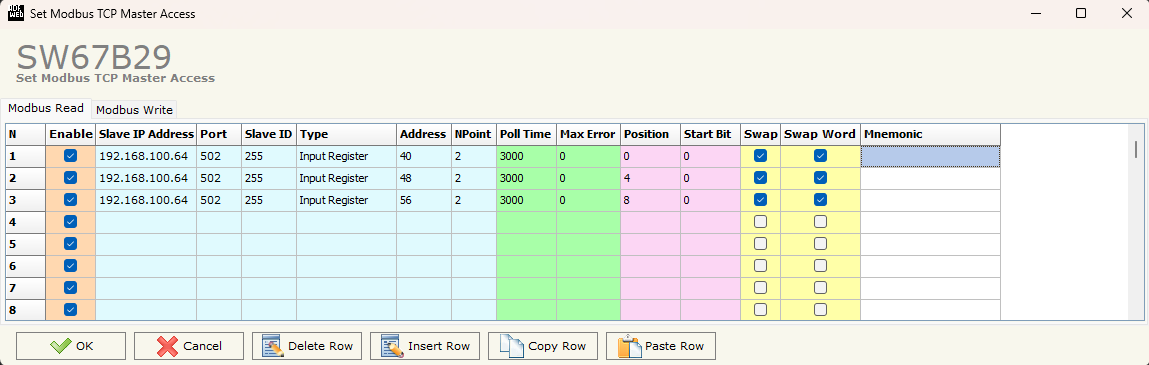
Figure 10: Modbus Set Access - Configuration
11. SW67B29 software does not allow Slave ID = 255. For this reason, open the folder of the software and search for the project created.
12. In this case, the project is in Projects>>Rheonics
13. Open the ModbusTCPM_SetAccess file and modify the file according to the desired parameters.
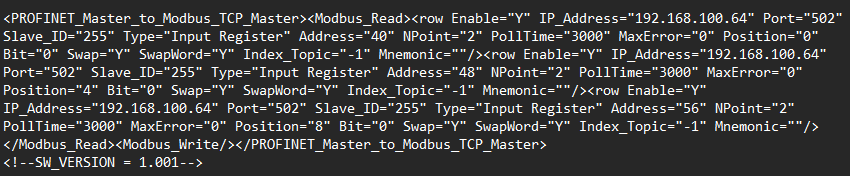
Figure 11: Modbus File
14. If the IP of the HD67B29-B2 is known, click on Update Device UDP
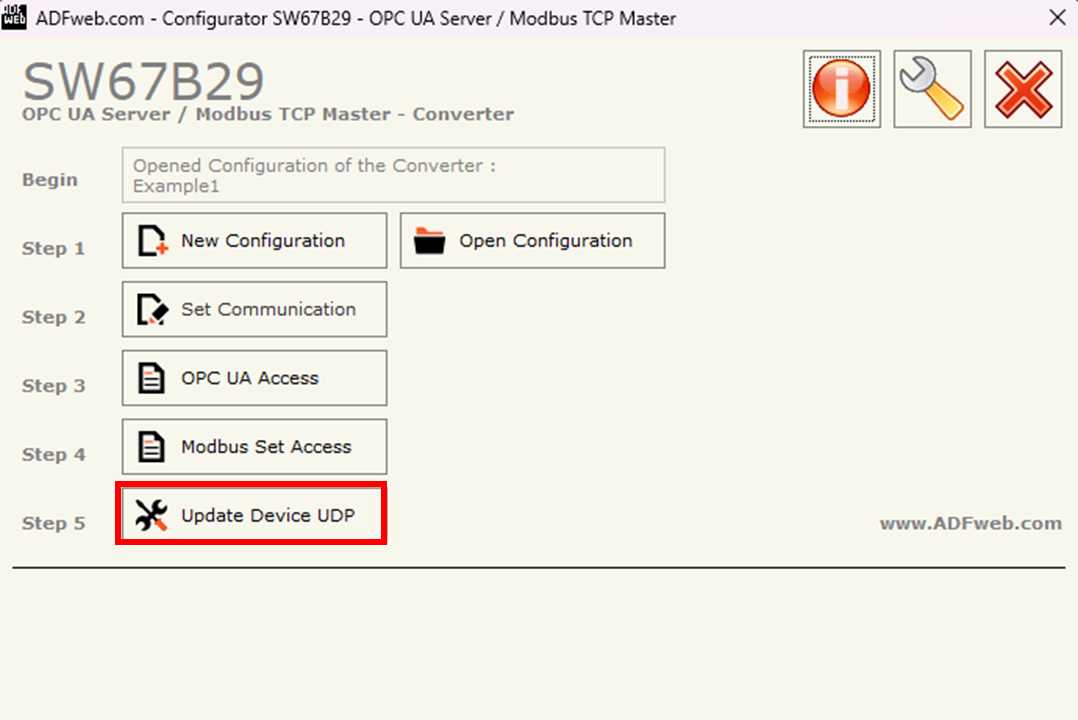
Figure 12: Update Device UDP
15. Insert the known IP, select Configuration, and Execute Update Firmware.
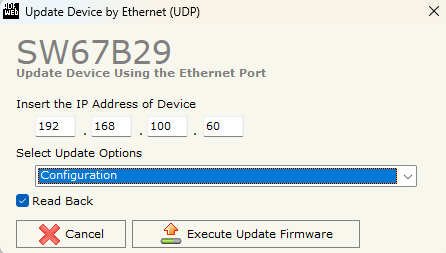
Figure 13: Execute Update Firmware
16. An Ok message should appear.
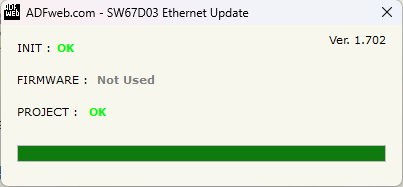
Figure 14: Ok message confirmation
17. If the IP of the device is unknown, turn OFF the device, and put Dip1 of Dip-Switch of the device in ON position.
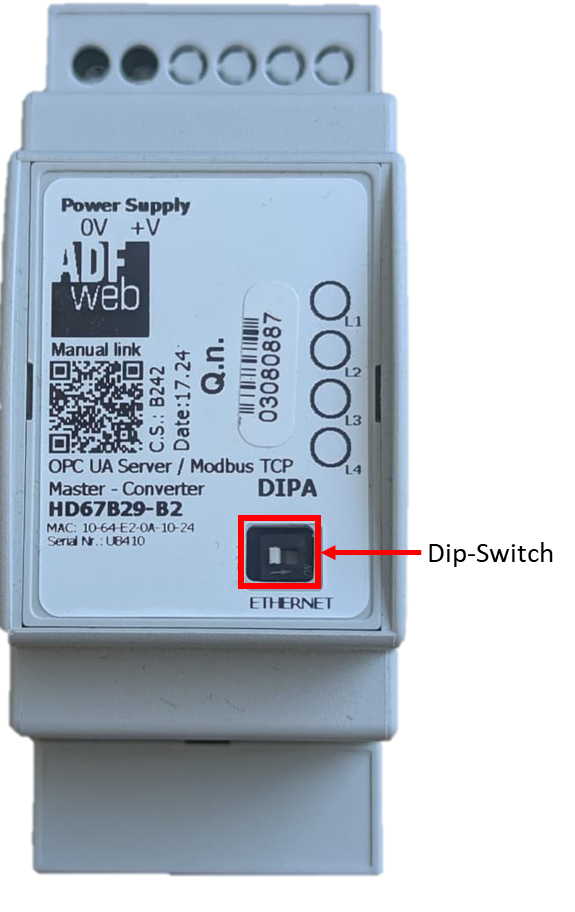
Figure 15: Converter Dip-Switch
18. Turn on the device, connect the Ethernet cable to the PC, and insert the IP “192.168.2.205”.
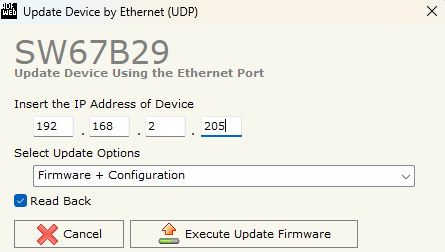
Figure 16: Update Device by Ethernet with default IP
19. After the Ok message appears, turn OFF the device.
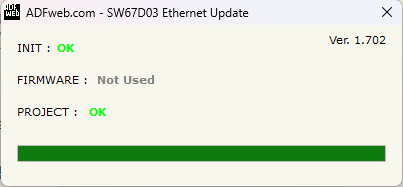
Figure 17: Ok message confirmation
20. Put Dip1 of Dip-Switch A in OFF position and turn ON the device. The device can now be configured using the IP chosen in Set Communication configuration.
21. Connect the HD67B29-B2 to the SME and your OPC UA Client as the following diagram.
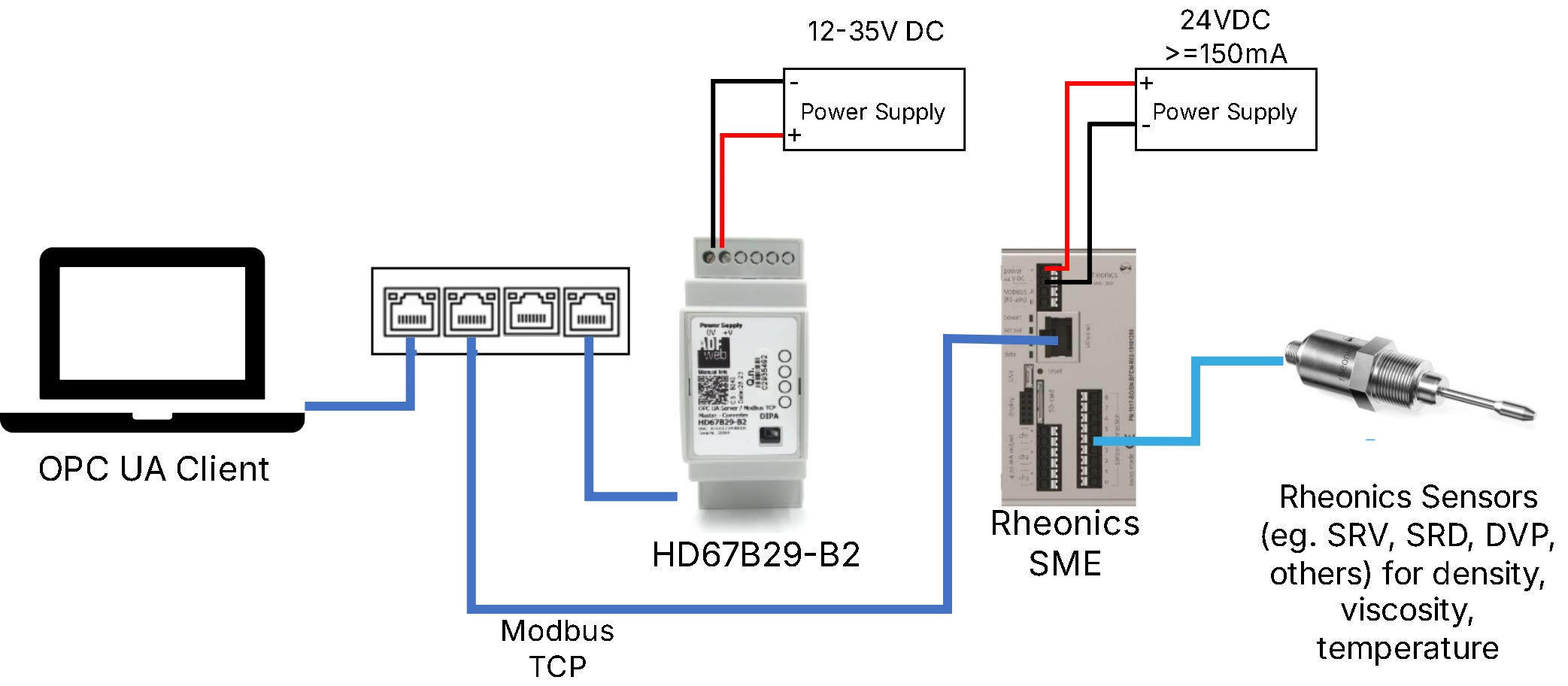
Figure 18: HD67B29-B2 Connection with SME and OPC UA Client
3. OPC UA Client Configuration
An OPC UA client is required to access the data sent by the gateway. In this example, UA Expert is used to simulate an OPC UA client.
1. Open the UA Expert Software. It can be downloaded from Unified Automation
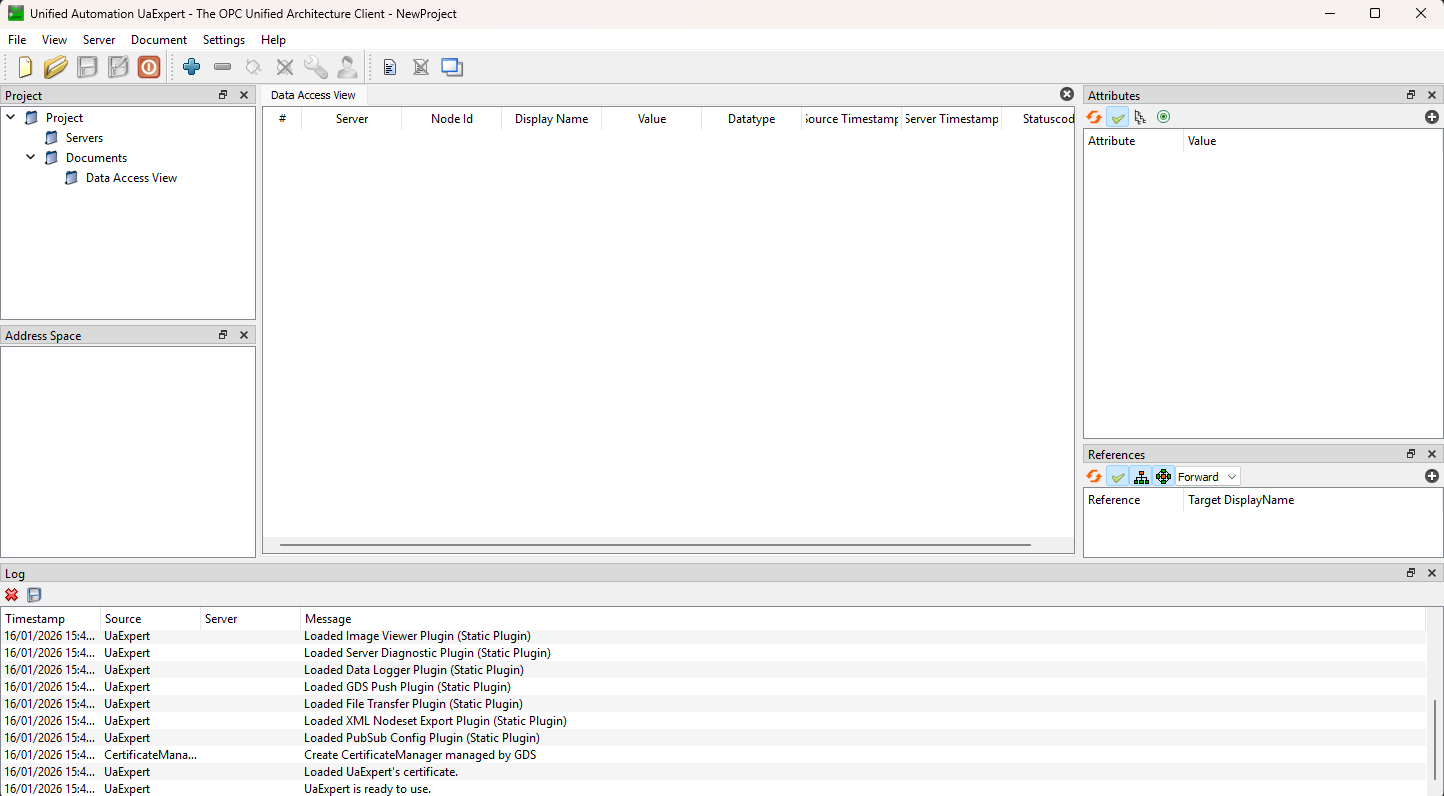
Figure 19: UA Expert Software
2. Click on the add server button.
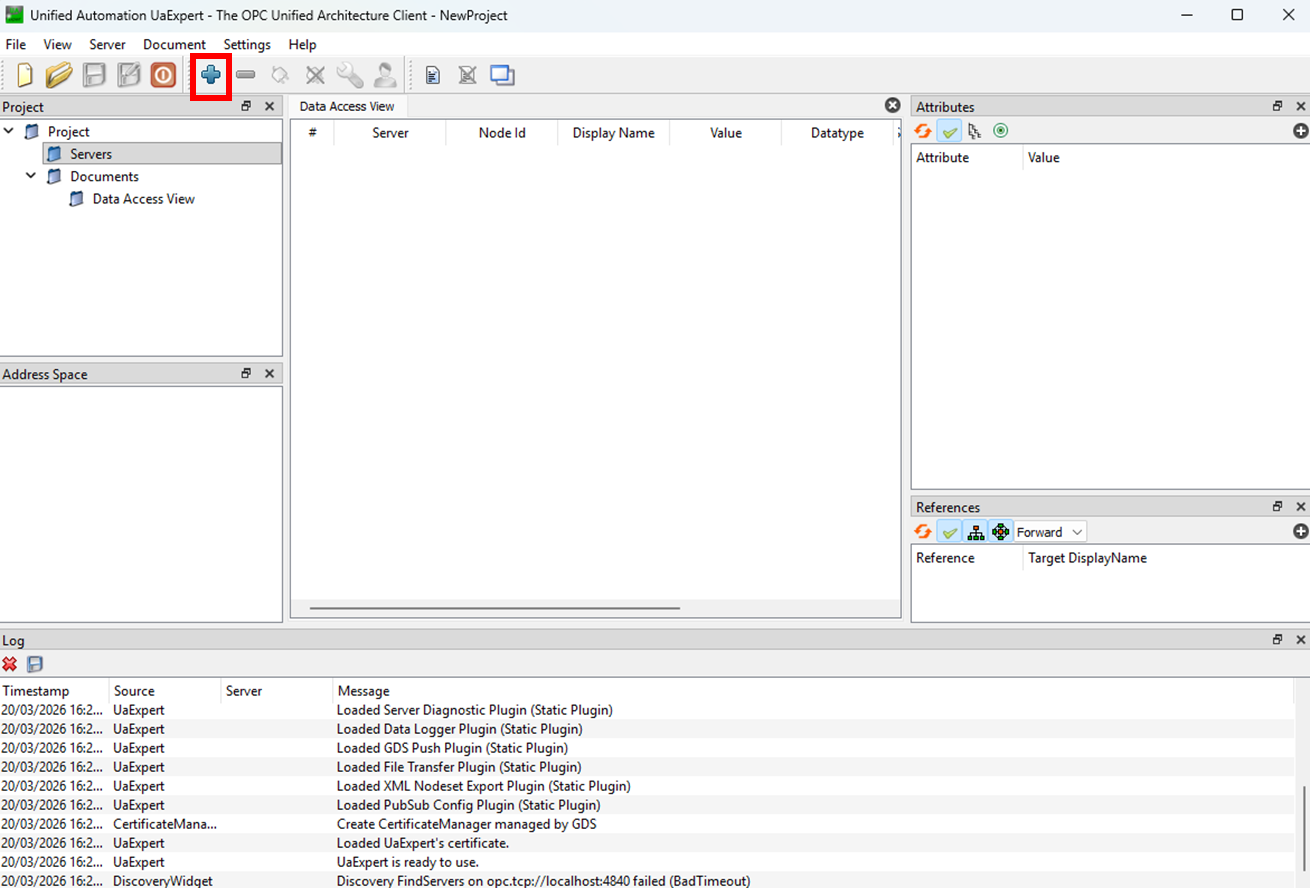
Figure 20: Add server button
3. Select Advanced and fill in the following to add a new server:
- Configuration Name: e.g. SRV
- Endpoint URL: Corresponds to the IP of the OPC UA assigned in the configuration, in this case, opc.tcp://192.168.100.10
- Authentication Settings: Anonymous
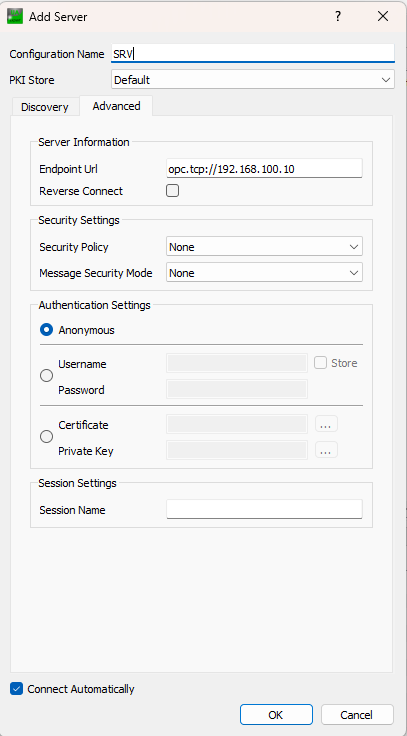
Figure 21: Add server configuration
4. Connect to the server.
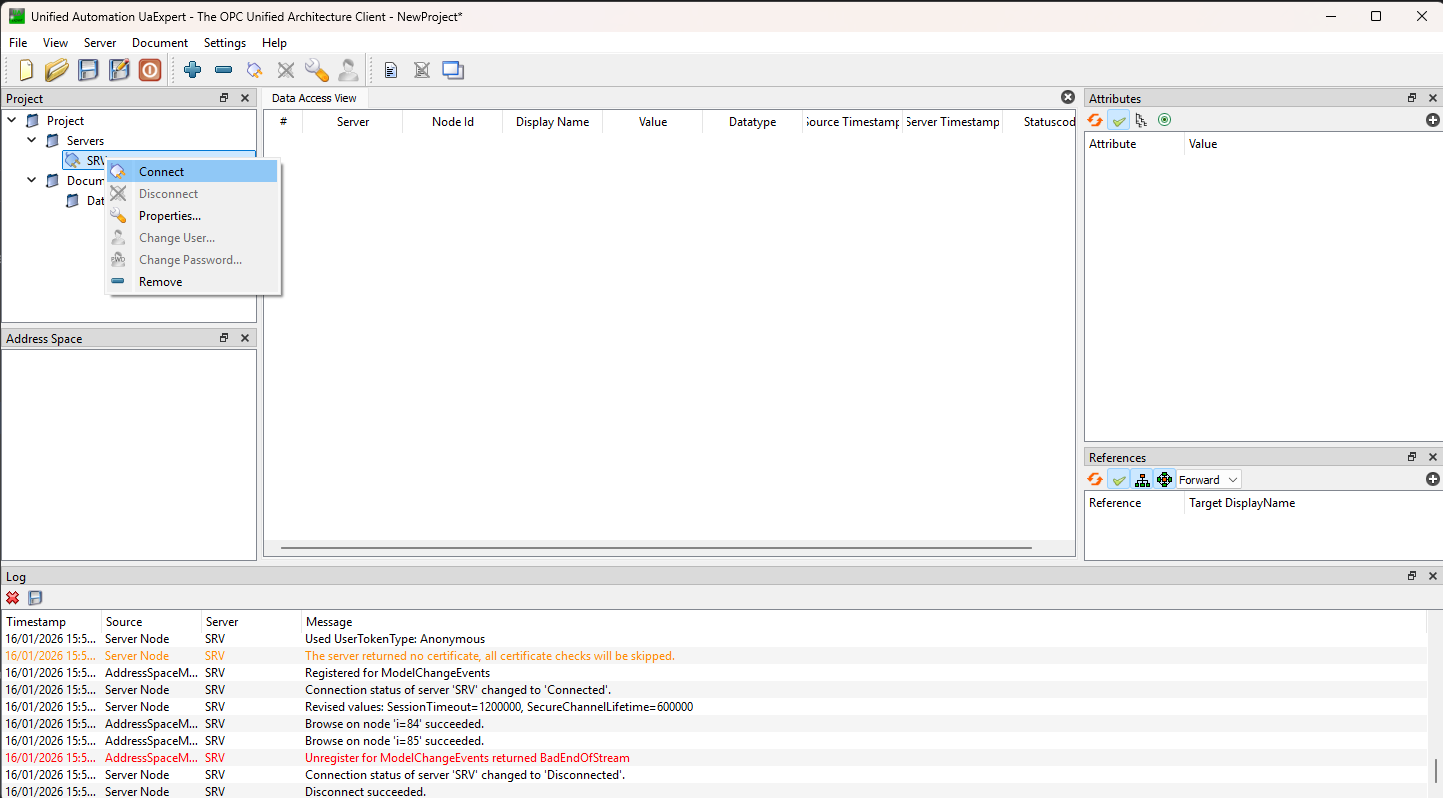
Figure 22: Connection to server
5. Drag the desired variables into the Data Access View to monitor real-time values.
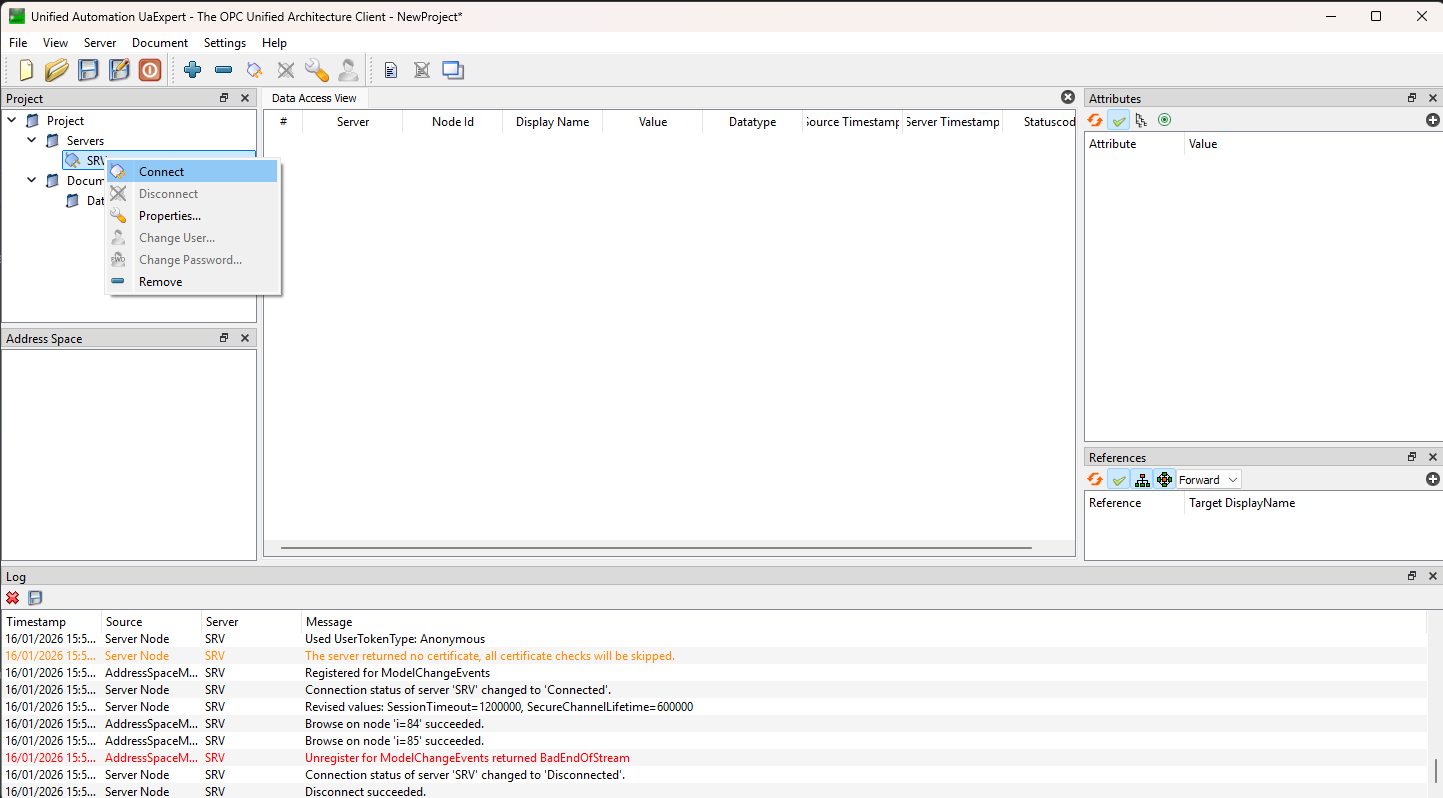
Figure 23: Visualization of sensor parameters
4. References
- ADF Web - OPC UA / Modbus TCP - Converter
- SW67B29 software
- Modbus TCP Input Registers
- Unified Automation